

Data
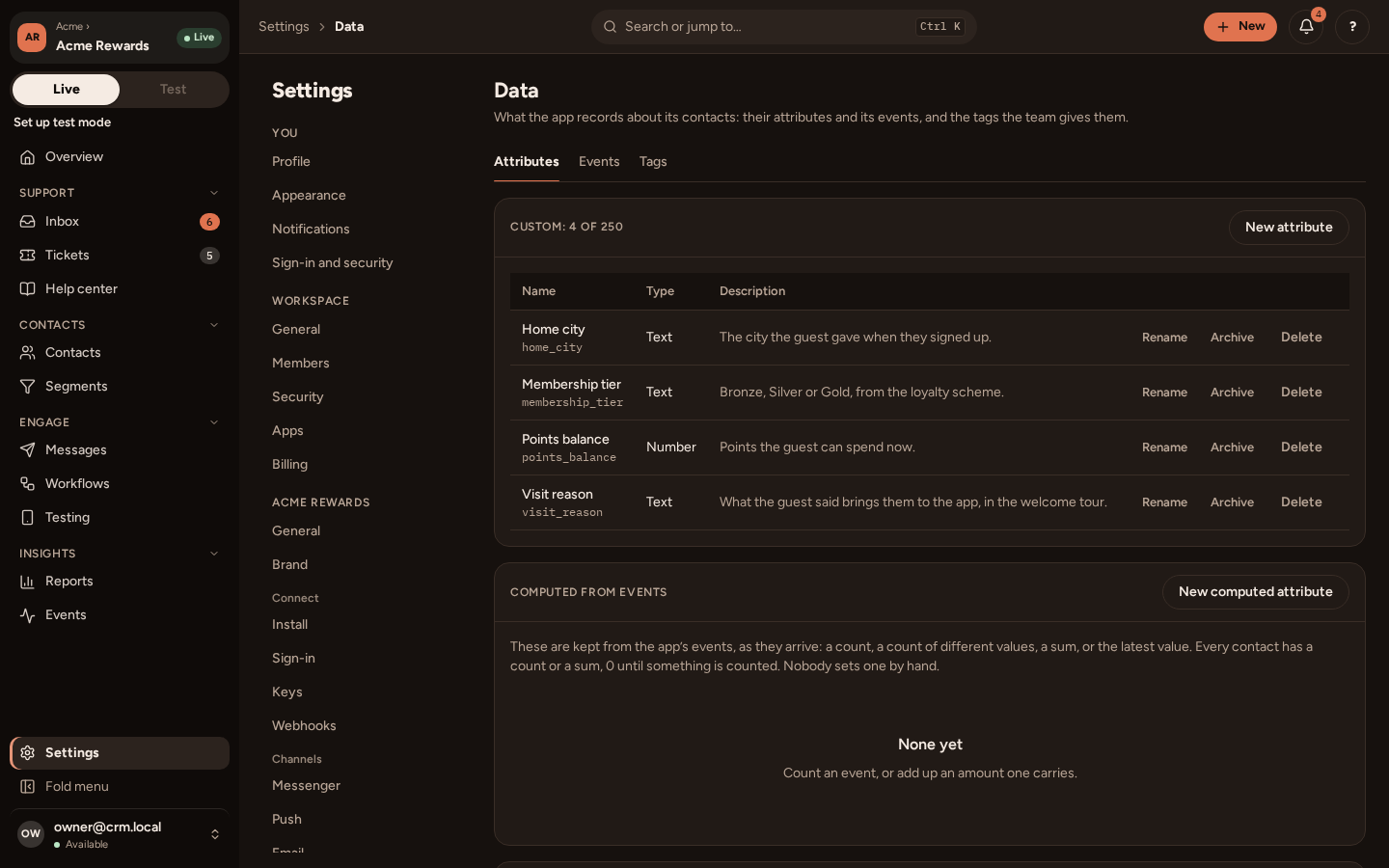
Everything PurrCRM knows about people is in three kinds of data. Go to Settings › Audience › Data to see and manage them.
| Kind | What it is | Where it comes from |
|---|---|---|
| Attributes | What a person is: membership_tier, points_balance, home_city. Each has a type: text, number, true/false, date, or a list. | Your backend’s Identify, an import, or your team on the contact record. |
| Events | What a person did: order_placed with its props, such as total. | Your app (the SDK sends the standard ones by itself), your website, or your backend. |
| Tags | Labels your team puts on people, such as “VIP”. | Your team, imports and workflows. |
Give each attribute a label, such as “Points balance”: the label is what your team sees in segments, filters and the Insert attribute picker, with the key in grey beside it.
Standard events
Section titled “Standard events”PurrCRM knows about 45 standard events without you doing anything: the app opening and closing, screens viewed, pushes opened, messages seen and tapped, surveys answered, conversations started and rated, and more. Your own events, such as order_placed, are added beside them.
A name it has not seen before
Section titled “A name it has not seen before”What happens when your backend sends an attribute, or your app an event, that is not on the Data page yet depends on one switch, Strict data, on Settings › your app › General.
First sight (the default)
Section titled “First sight (the default)”The new attribute or event is accepted and added to the Data page with the type PurrCRM worked out from its value, marked New, review. The overview says how many are waiting.
Open it, check its type, give it a label and a description, and press Mark reviewed. Changing it marks it reviewed too.
To protect you from a mistake flooding your data, at most 50 new ones are made a day, and a name that looks like an id (a long run of digits or letters, such as user_93841207) is refused.
Strict data
Section titled “Strict data”With Strict data on, anything not already on the Data page is refused: the call says which name was refused and why, and the rest of the batch is kept. The overview lists what was refused this week. Use strict data once your setup is settled, so that a typo in an event’s name cannot add a new one.
Defining events yourself
Section titled “Defining events yourself”You can add events and their props on the Data page’s Events tab before anything sends them, or let your backend declare them with event definitions, so the list lives with your code. Declaring only adds: nothing your team wrote on the Data page is changed.
Exporting and erasing
Section titled “Exporting and erasing”- A contact: on their record, More › Export this contact downloads everything kept about them.
- From your backend: export and erase a person by your own id for them, for data requests.