

Languages
An app can speak several languages. You write everything in your default language first, then translate it; PurrCRM sends each person the language that suits them.
Choose your languages
Section titled “Choose your languages”Go to Settings › Audience › Languages. Choose the default (what everything is written in first) and up to 20 others. Search the list by name or code, such as “Welsh” or cy.
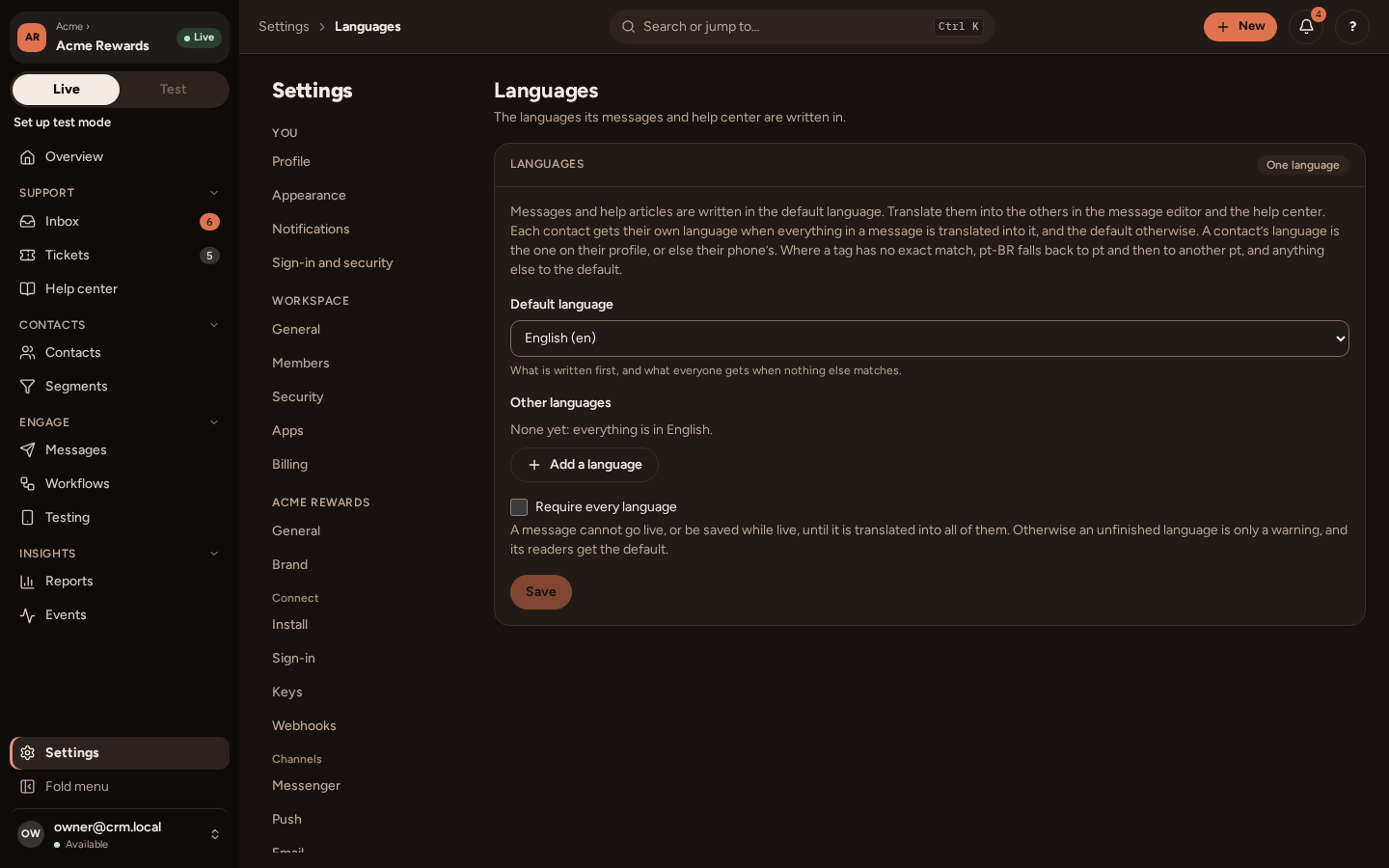
Choose too whether every language is required before a message can go live:
- Off: a message missing a language goes to those people in the default language, and the editor reminds you.
- On: a message cannot go live until every language is written.
Translate
Section titled “Translate”In the message editor, a language switch appears beside the content. Write each language’s words; a link can point to a page in that language too. To work with a translator, export the message’s words as a spreadsheet (CSV) from the editor, and import the translated file back.
When you change the default’s words later, the translations made from the old words are marked out of date. Choose Keep it as it is, or write them again.
Help articles, collections and topics are translated the same way, beside the default.
How a person’s language is chosen
Section titled “How a person’s language is chosen”PurrCRM uses the first of these that your app has:
- the language on their contact record, which your backend sends with Identify;
- their phone’s or browser’s language;
- your default.
A close match counts: someone whose phone says pt-PT gets pt-BR if that is what you have.
Whole or not at all
Section titled “Whole or not at all”A message goes in a person’s language only when every part of it is translated and up to date; otherwise it goes in the default, whole. People never get half a message in each language.
Help articles are different: an out-of-date translation is still shown, with a note that it may be out of date, because a slightly older article helps more than one in another language.
The report of a message, and of the help center, can be split by language.