

An email from your own domain
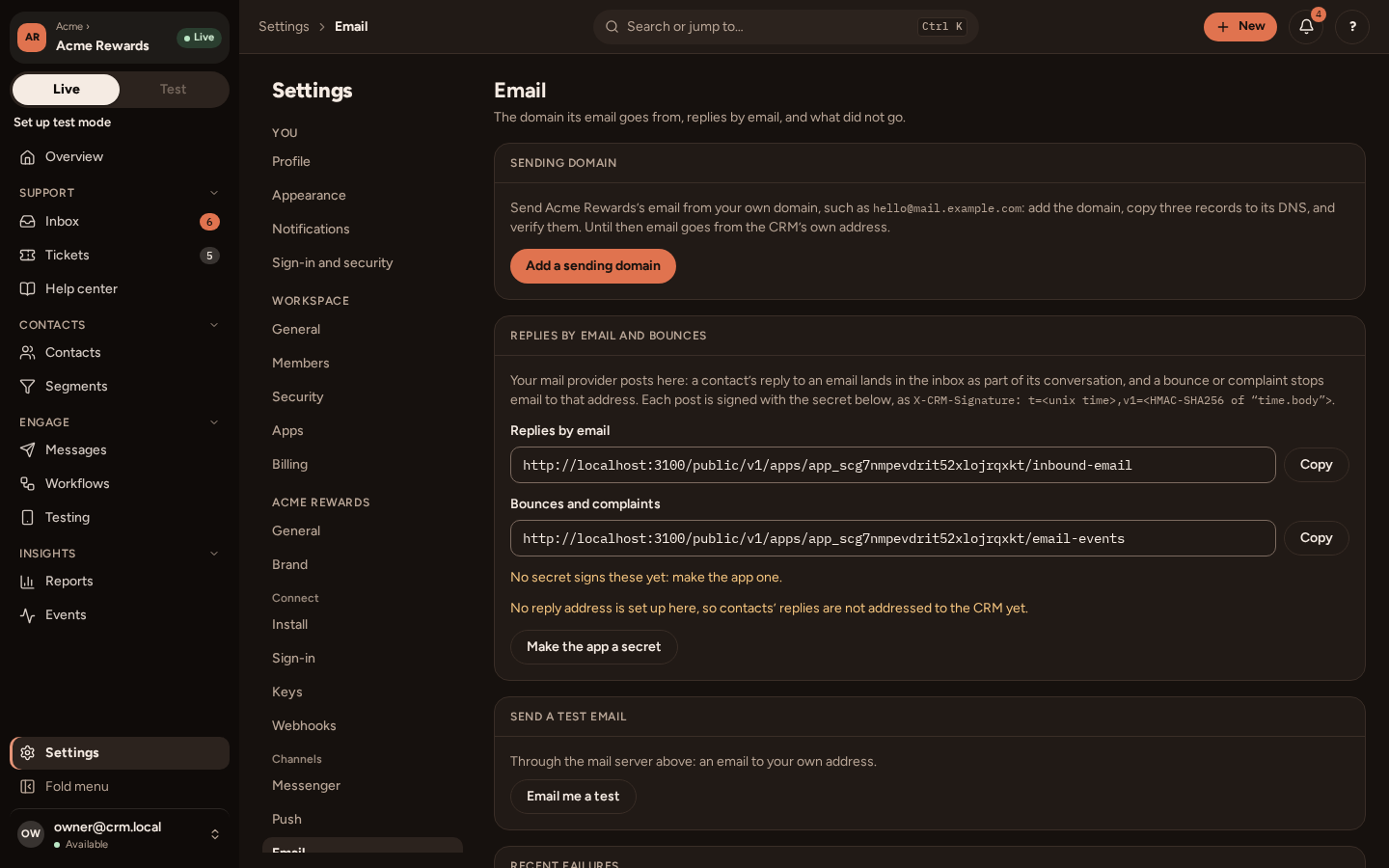
PurrCRM sends your app’s email itself. Until you add a domain, it goes from PurrCRM‘s own address under your app’s name. With your own verified domain, it goes from an address such as hello@mail.northwind.example, signed so that inboxes trust it.
You need to be able to add DNS records for your domain, or to ask whoever can.
1. Add a sending domain
Section titled “1. Add a sending domain”-
Go to Settings › Channels › Email and press Add a sending domain.
-
Enter the domain to send from. A subdomain such as
mail.northwind.exampleis best: it keeps your marketing email apart from your company’s own. -
PurrCRM shows three DNS records, each with Copy:
Record What it does DKIM (TXT) A key that signs every email, so inboxes know it is really from you. SPF (TXT) Says PurrCRM may send for the domain. DMARC (TXT) Tells inboxes what to do with mail that fails the checks. -
Add the three records at your DNS provider, exactly as shown.
2. Verify it
Section titled “2. Verify it”Back on the Email tab, press Verify. DNS changes can take from a minute to a few hours to be seen. The domain shows as:
- Pending: not all records are seen yet. The page says which.
- Verified: email now goes from your domain.
- Failing: it was verified, and a record has since changed. Press Check again after fixing it.
Choose the address’s first part (such as hello) under the domain. Press Email me a test to send one to yourself.
3. Add your postal address
Section titled “3. Add your postal address”Marketing email must carry a postal address. Go to Messages › Layouts, open your layout, and add the address to its footer. The layout is the header and footer every email shares, with your logo and colours.
4. Write the email
Section titled “4. Write the email”Press + New › Email campaign.
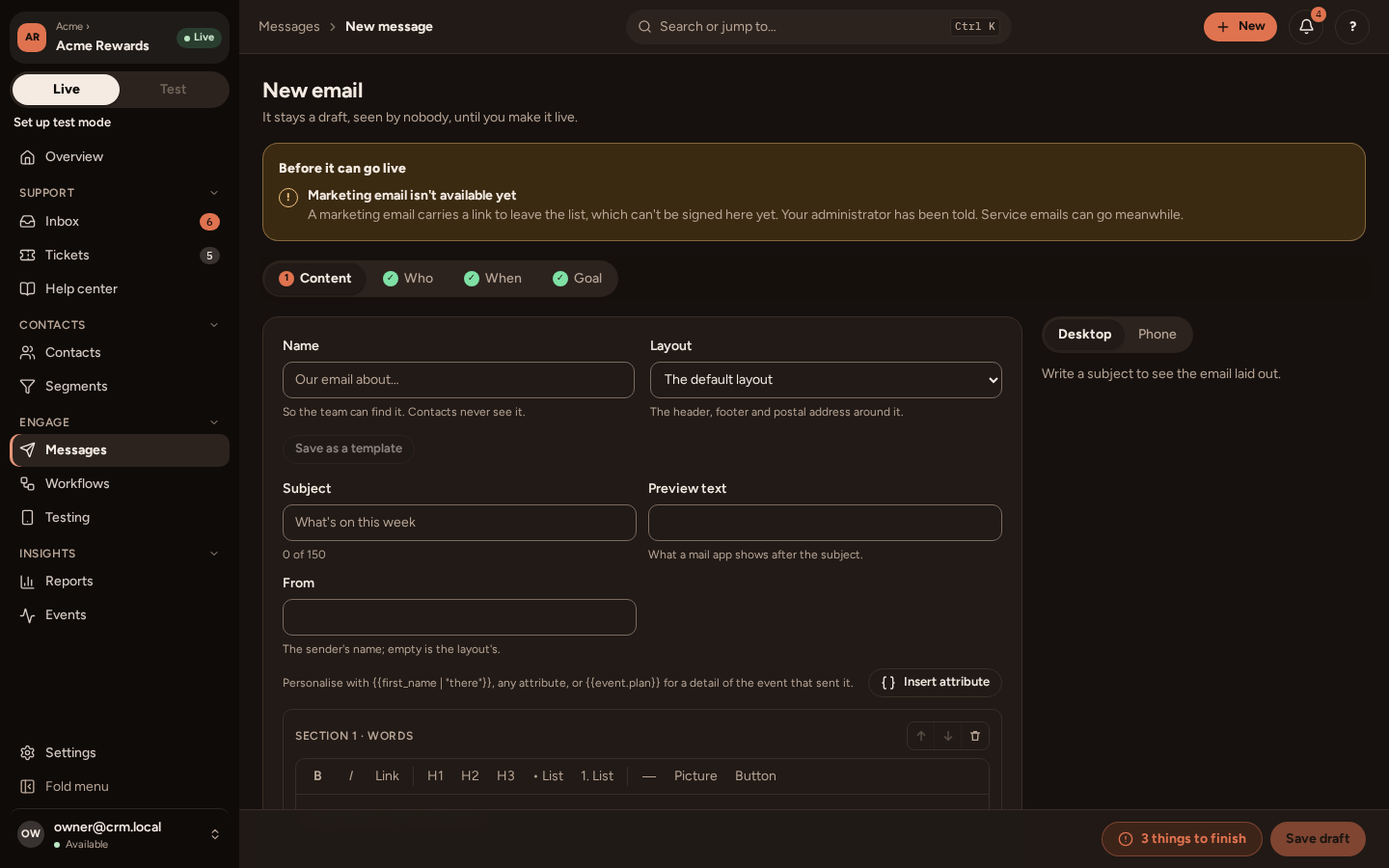
On Content, write the subject, the preheader (the line inboxes show after the subject) and the body. Press Insert attribute to personalise any of them.
On Who, choose who gets it and choose Marketing with its topic. The count tells you how many can get it: people need an email address, must be subscribed to the topic by email, and must not be suppressed.
On When, send it once, now or at a time.
Press Email me a test, then Go live.
Unsubscribing
Section titled “Unsubscribing”Every marketing email has an unsubscribe link and the one-click unsubscribe that mail apps show. A person who unsubscribes leaves that email’s topic by email, and can choose more on the preference page it opens. See Consent and topics.
Bounces and replies by email
Section titled “Bounces and replies by email”Under Replies by email and bounces, the Email tab shows two addresses and a secret. Give them to your mail provider’s webhook settings (your developers’ part: Webhooks):
- Bounces and complaints: a bounce or a spam complaint stops email to that address. It shows on Settings › Audience › Suppressions, where you can remove it.
- Replies by email: a person’s reply to an email lands in your inbox as part of their conversation.
Recent failures lists the emails that did not go in the last two weeks, and why.