

A welcome workflow
A workflow follows each person over hours or days by itself: it starts when they do something, waits, checks, and sends messages. This tutorial welcomes each new user with a post in the app, a day after they sign up.
Before you start: your app (or your backend) sends the event that starts it. The template uses signed_up, which your backend sends with Identify or as an event.
1. Start from the template
Section titled “1. Start from the template”Go to Workflows, press New workflow, and pick Welcome new contacts.
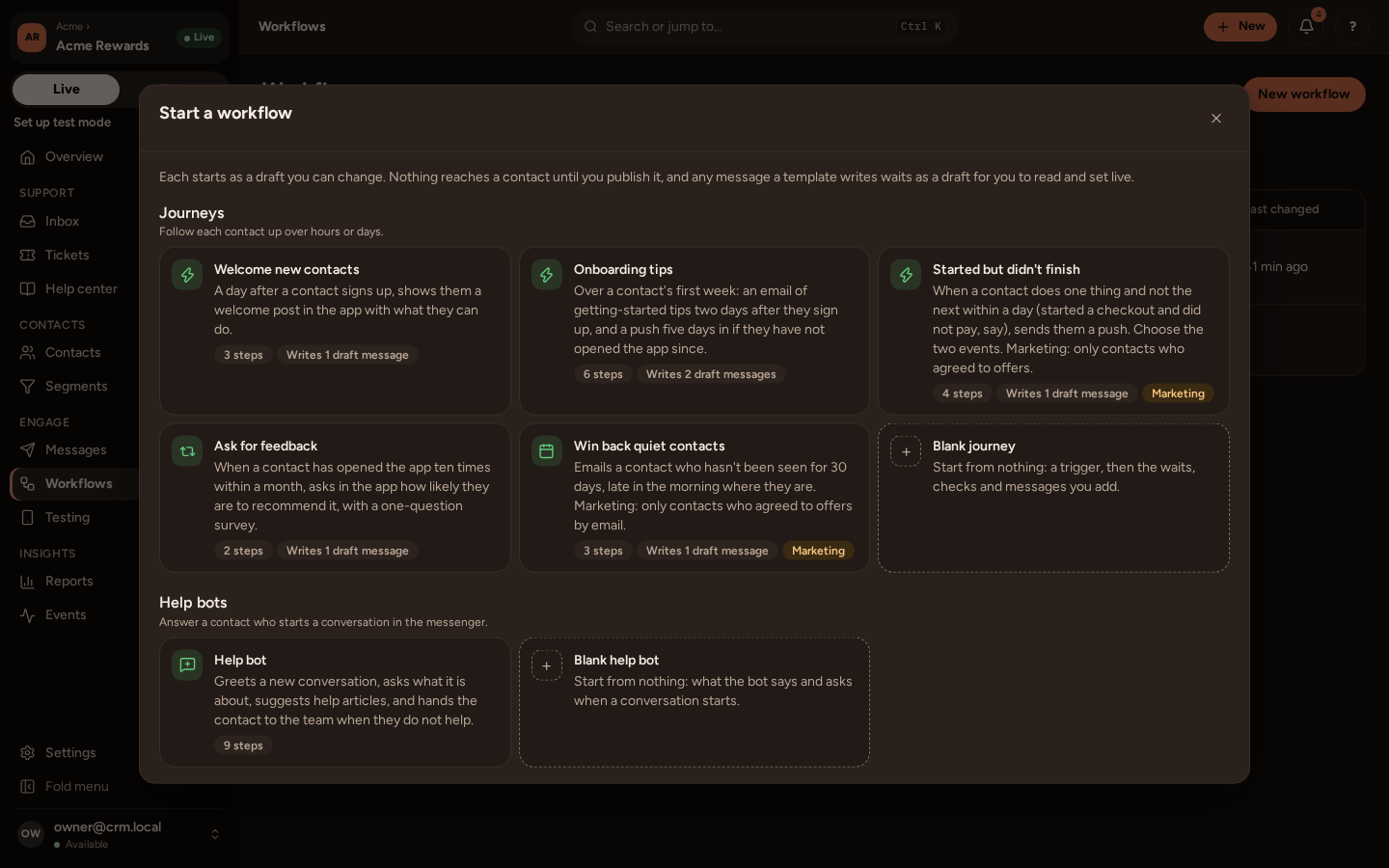
Every template starts as a draft. Nothing reaches anyone until you publish it, and any message a template writes waits as a draft for you to read.
2. Read the canvas
Section titled “2. Read the canvas”The workflow opens on its canvas: one card per step, from the top down.
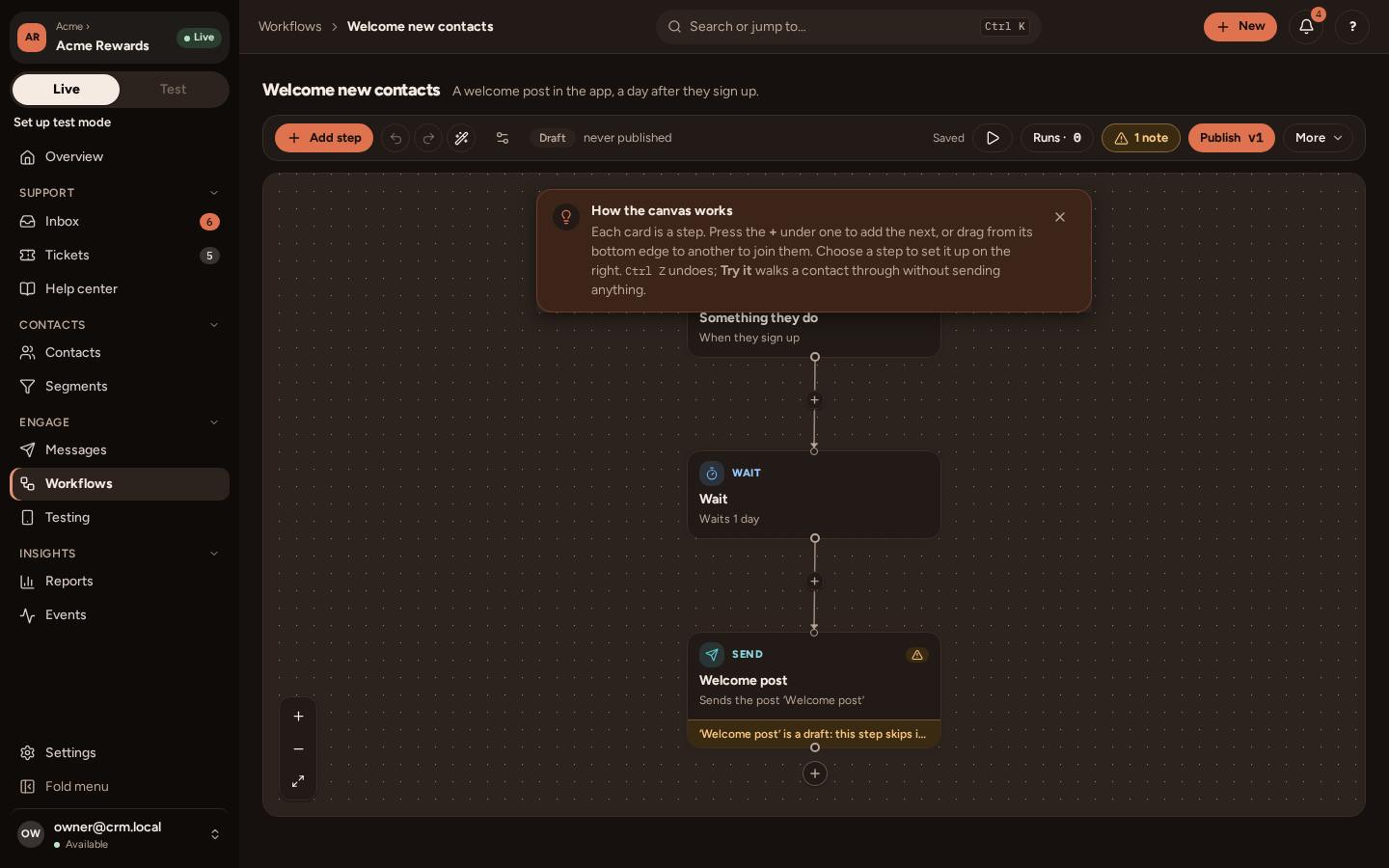
| Step | What it does |
|---|---|
| Something they do | The trigger: it starts once for each person who signs up. |
| Wait | Waits a day. Waits can also last until a time of day, in each person’s own time zone (set it on Settings › your app › General). |
| Send | Sends the post “Welcome post”. |
Press a card to set it up in the panel that opens. Press the + under a card to add the next step: another wait, a check that branches on what a person did or who they are, a message, a tag, a webhook to your own server, or the end. Press Ctrl Z to undo.
3. Write the welcome post
Section titled “3. Write the welcome post”The Send step shows a warning: “Welcome post” is a draft. Press the step, then open the message, and write it as in Your first in-app message. Its When is Only from a workflow: the workflow decides who gets it and when.
4. Try it
Section titled “4. Try it”Press the Try it button (▷) at the top of the canvas, and pick a contact. PurrCRM walks them through the workflow and shows what each step would do, without sending anything.
5. Publish
Section titled “5. Publish”Press Publish v1. The dialog lists every message the workflow sends that is still a draft, under “This message will go live too”, each marked Ready or with what stops it (“Can’t go live: …”). While one cannot go live, nothing is published. Fix it, then press Publish, and set it live.
Once published, the workflow starts for each person who signs up from then on. People who signed up before are not included.
6. Watch the runs
Section titled “6. Watch the runs”Runs shows each person going through the workflow: where they are, what was sent, and what went wrong. A step that did not work says so (“Did not work: …”), for example a message a person had no consent for.
To change a live workflow, edit it and publish again: it becomes the next version. People already in it carry on in the version they started.