

Set up the inbox and help center
People write to you from the messenger in your app. Their conversations arrive in your Inbox, where your team answers them. The Help center holds articles people can read in the app and on the web, and a help bot can answer first.
1. Set up your team
Section titled “1. Set up your team”Go to Settings › Support › Inbox. It has five parts:
| Part | What to set |
|---|---|
| Teams | Who answers, how new conversations are assigned, office hours, and the reply time people are told (“In a few hours”). Every app starts with a Support team. |
| Reply targets | How soon a conversation should get its first reply, and the next. Conversations close to or past their target are marked Late. |
| Saved replies | Answers your team reuses, which can also close, snooze or tag a conversation. |
| Ticket types | The kinds of tickets, such as “Refund”, and what each asks for. |
| Teammates | Who is in the workspace: this links to Settings › Workspace › Members. |
2. Design the messenger’s home
Section titled “2. Design the messenger’s home”Go to Settings › Channels › Messenger. This is the first screen people see when they open the messenger:
- Greeting and Intro: for example
Hi {{first_name | "there"}} 👋and “How can we help?”. - Team: whose faces show, and the reply line, worked out from your office hours or in your own words, with an away message.
- Cards, in order: “Send us a message”, their conversations, their tickets, featured articles, help search, a link or a status line. Each card can be for everyone or for one segment. Drag to reorder.
- Options: whether people may start a conversation (whenever they like, only when none is open, or never), and whether they may send pictures.
The preview shows it on iPhone and Android, light and dark. Press Publish when it is ready. Until then, people see the messenger’s own home.
3. Answer in the inbox
Section titled “3. Answer in the inbox”Inbox lists the conversations: Mine, Unassigned, Due, All, and more under More.
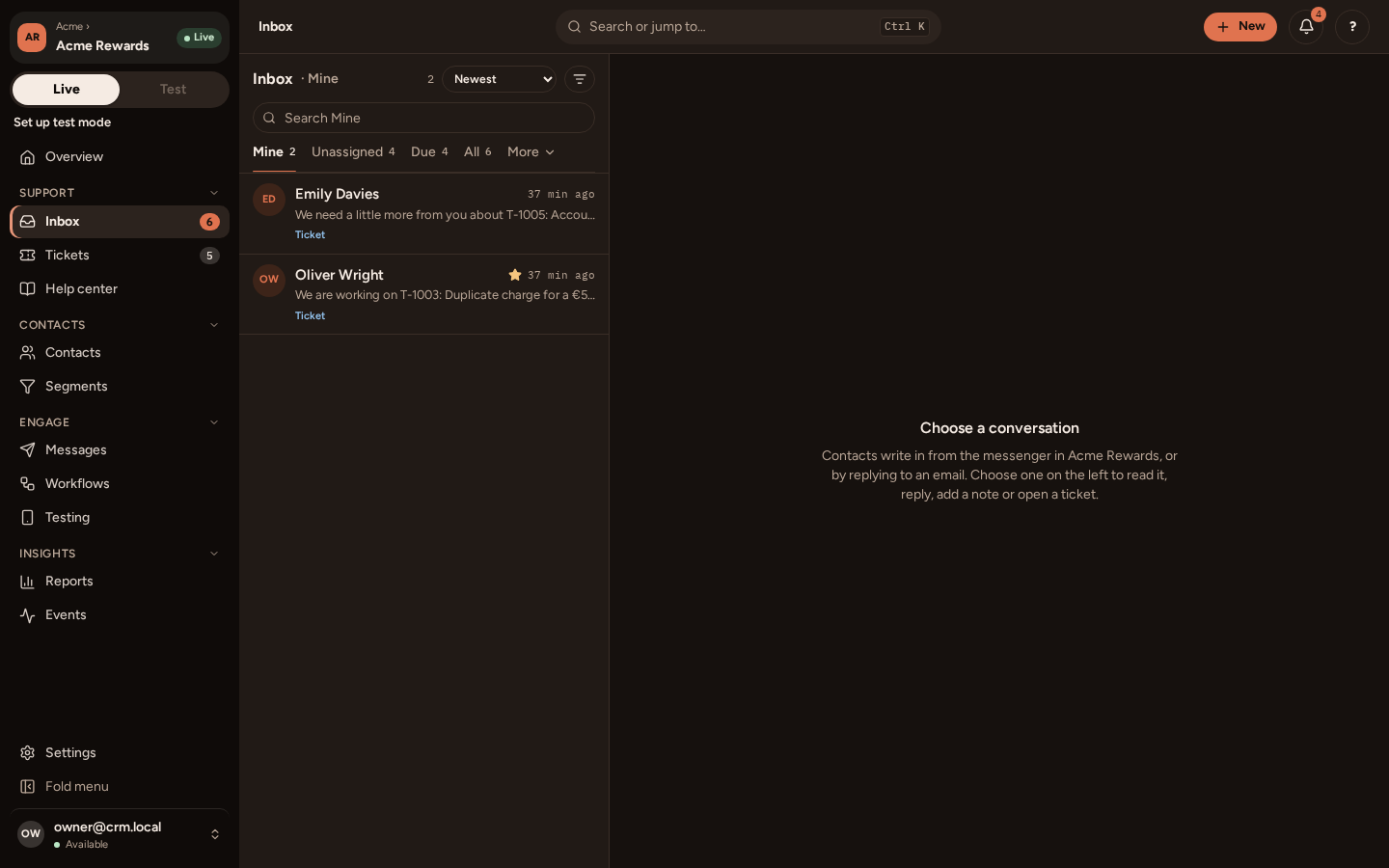
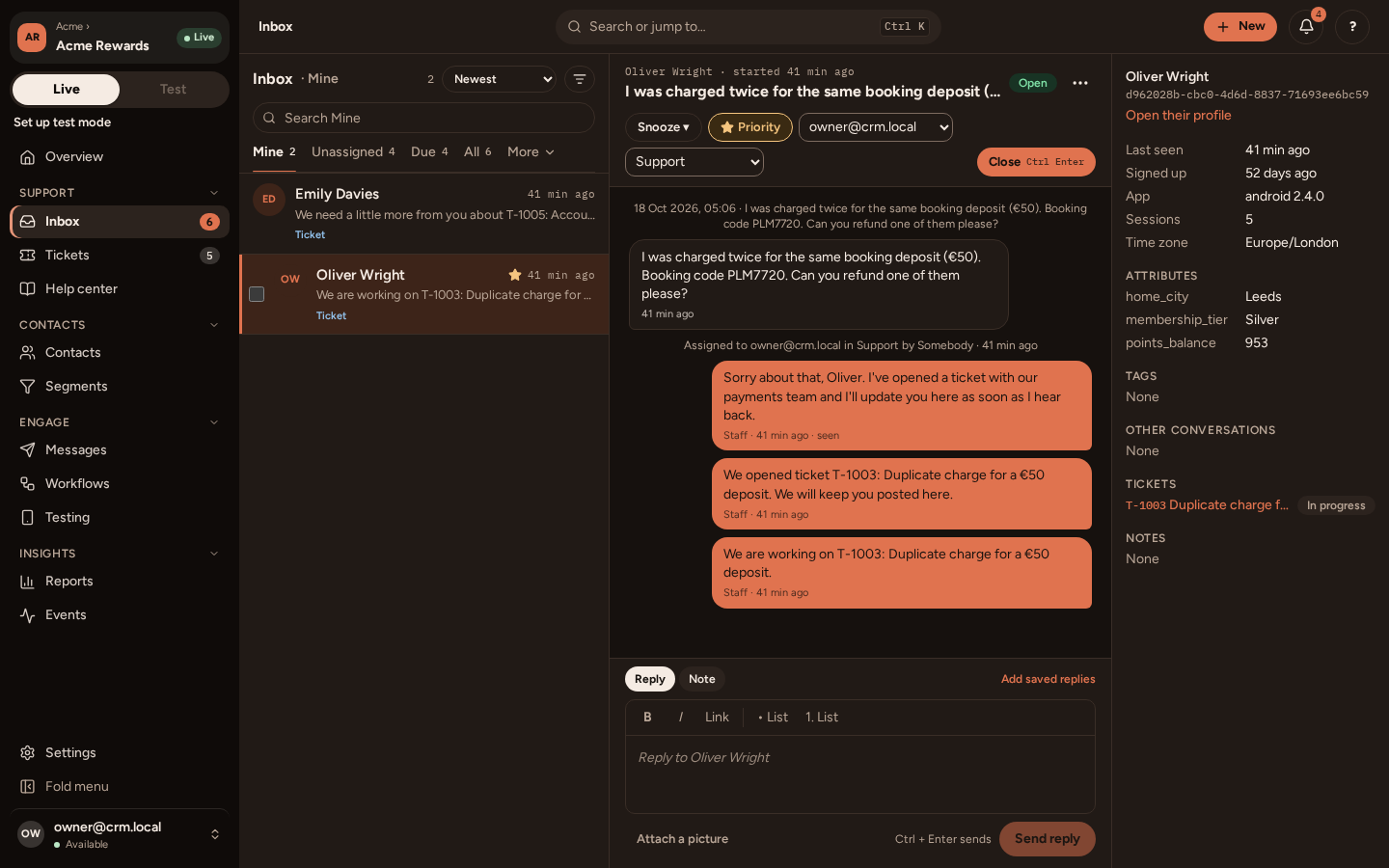
Open one to read and answer it. Beside your reply you can:
- add a note only your team sees, and mention a teammate;
- assign it to a teammate or a team;
- mark it priority, snooze it until later, or close it;
- use a saved reply;
- open a ticket for something that needs follow-up. The person sees the ticket and where it has got to in their messenger.
The panel on the right shows the person: who they are, their recent events, their tickets and their earlier conversations.
When a conversation is closed, the person is asked to rate it. Ratings show in Reports.
4. Write help articles
Section titled “4. Write help articles”Go to Help center.
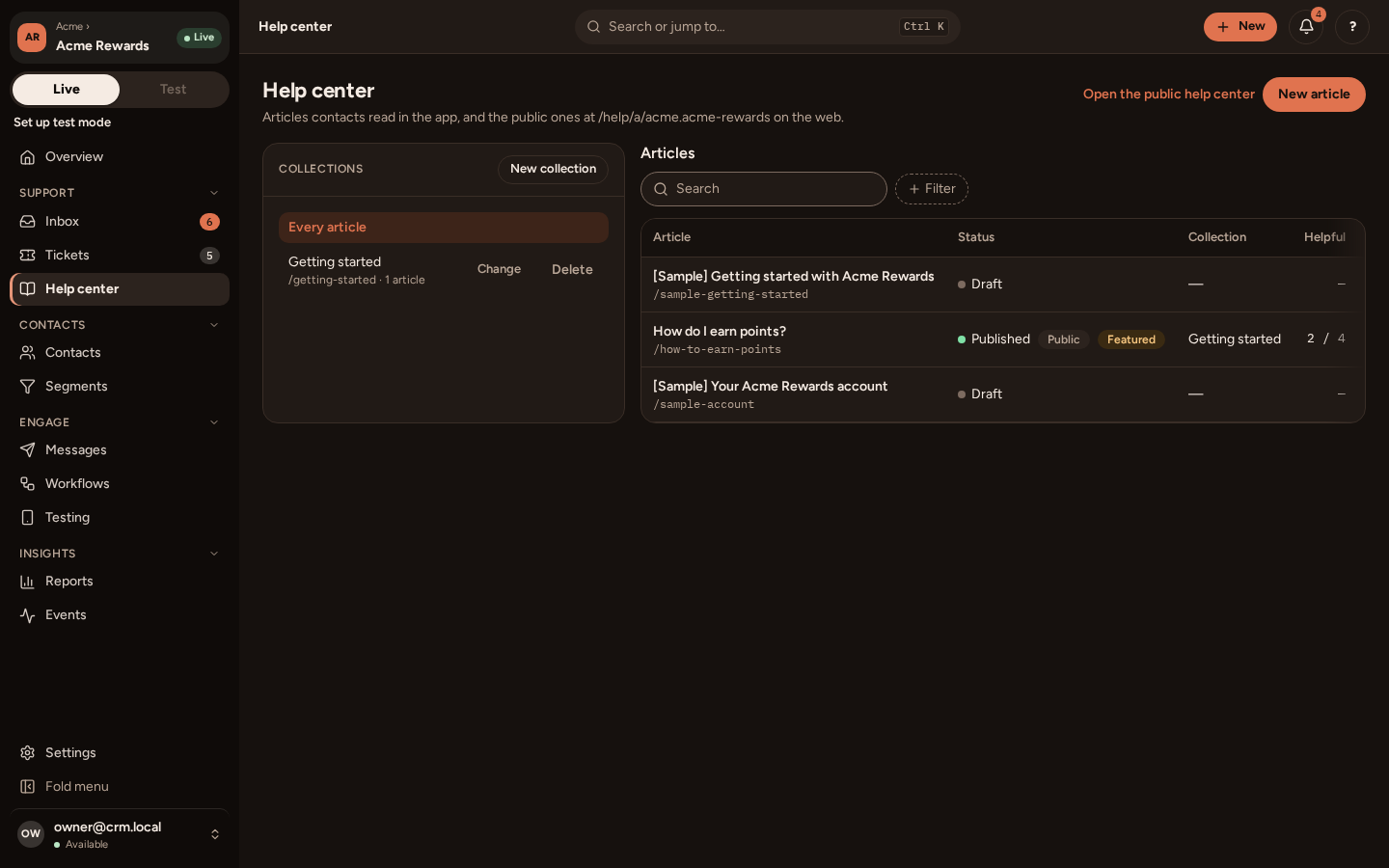
- Press New collection for each topic, such as “Getting started” or “Your account”.
- Press New article. Write a title, a summary and the article; add pictures and links. Choose its collection.
- Choose who can read it, and whether it is Public (on the web as well as in the app) and Featured (on the messenger’s home).
- Publish it.
People read and search articles in the app’s help center, and say whether each helped: the Helpful column counts them. Public articles are also on the web, at the address the Help center page shows (Open the public help center).
Articles can be written in each of your app’s languages: see Languages.
A help bot
Section titled “A help bot”A help bot speaks first when someone taps Send us a message: it greets them, asks what it is about, suggests articles, and hands them to your team when the articles do not help.
- Go to Workflows, press New workflow, and pick Help bot.
- Change its words and choices. A question can collect an email address or an order reference, checked before it is taken.
- Press Try it, then Publish.