

Your first in-app message
An in-app message is shown inside your app, over whatever screen the person is on. There are five kinds:
| Kind | What it is |
|---|---|
| Banner | A short line across the top of the screen, as a card or a strip. |
| Post | A richer message with pictures and buttons, in a sheet over the app. |
| Carousel | Screens a person swipes through, which can branch on their answers. Good for onboarding. |
| Survey | Questions, from a quick rating to several steps. See Surveys and A/B tests. |
| Chat | A message from your team that opens a conversation in the messenger. |
This tutorial makes a banner. The others work the same way.
Before you start: your app needs the Flutter SDK installed, with the overlay in place (Install and In-app messages). Until then you can write a message, but nobody sees it.
1. Start a banner
Section titled “1. Start a banner”Go to Messages and press New message, or press + New at the top of any page and choose Message. Pick Banner.
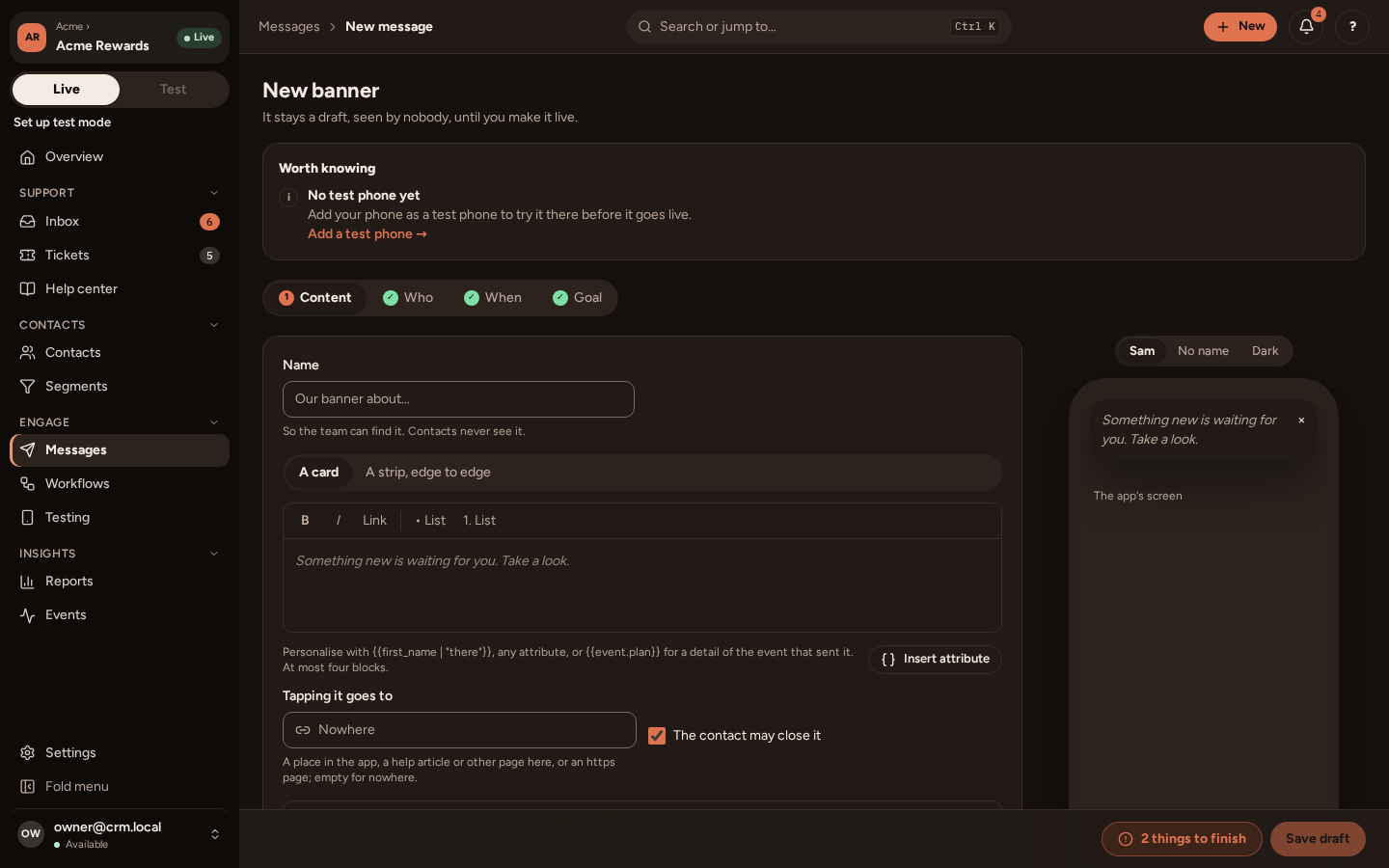
A new message is a draft, which nobody sees until you make it live. The editor has four steps along the top: Content, Who, When and Goal.
2. Write it
Section titled “2. Write it”On Content:
- Give it a Name, such as “Autumn menu banner”. Only your team sees it.
- Choose A card (floating under the status bar) or A strip, edge to edge.
- Write the words. Make a word bold, add a link or a list with the buttons above the text.
- To greet people by name, press Insert attribute and pick First name. It writes
{{first_name | "there"}}: the person’s first name, or “there” when it is not known. - Under Tapping it goes to, choose where a tap takes them: a place in your app, a help article, or a web page. Leave it as Nowhere for a banner that only informs.
The preview on the right shows it on a phone. Switch between Sam, No name and Dark to see it with a name, without one, and in dark mode.
3. Choose who sees it
Section titled “3. Choose who sees it”On Who:
- Everyone, A segment (a saved group, see Segments) or Custom conditions.
- Service or Marketing. A service message is about the person’s own use of the app, such as their order. A marketing message is an offer or news: it reaches only people subscribed to its topic, and counts towards your frequency cap. See Consent and topics.
The count shows how many people match, and how many can get it.
4. Choose when
Section titled “4. Choose when”On When:
- Once, now or at a time: shown once to each person, at their app’s next check-in.
- Whenever someone starts to match: keeps going, and shows to each person who comes to match later.
- When they do something: shown after a person does an event you pick, such as placing an order.
- Only from a workflow: a workflow sends it. See A welcome workflow.
You can also limit it to certain days and hours (in each person’s own time zone), and set Start sending on and Stop sending on dates.
5. Set a goal (optional)
Section titled “5. Set a goal (optional)”On Goal, choose what counts as success, such as “They do order_placed within 3 days”. The report then shows how many reached it.
6. Try it on your phone
Section titled “6. Try it on your phone”Press Try it on my test phone. The first time, you are asked to Add a test phone: sign in to your app on your phone, then pick yourself from the list under Testing › Preview on my phone. The banner appears on your phone at once, and nobody else sees it.
7. Make it live
Section titled “7. Make it live”When nothing is left to finish, press Go live. People see it the next time their app checks in, which happens when they open the app or bring it back to the front.
Open the message again later and choose the Report tab to see how many saw it, tapped it and reached the goal.
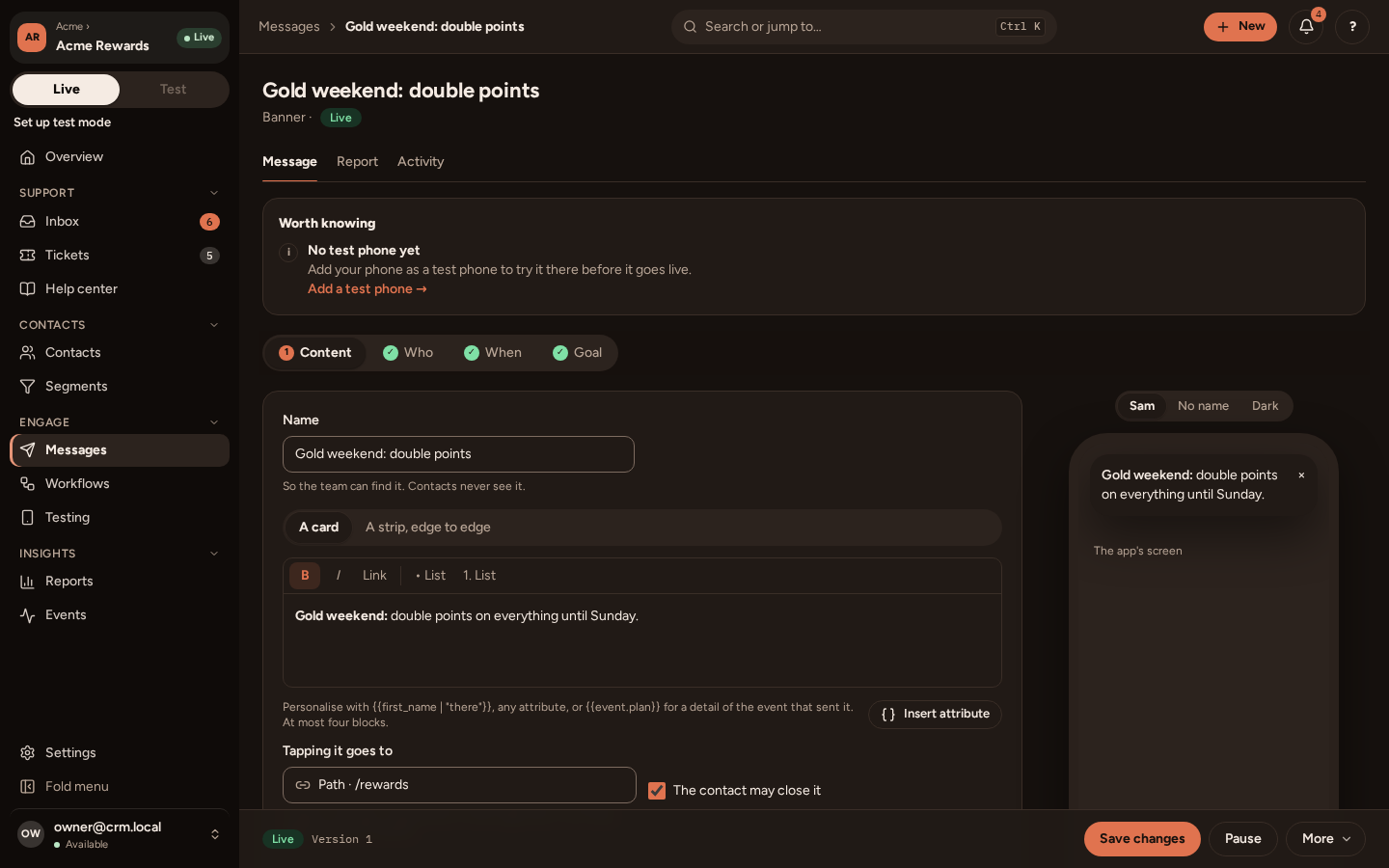
To stop it, press Pause. To change a live message, edit it and press Save changes: it becomes a new version, and the report keeps the numbers of each.