

A push campaign
PurrCRM sends your app’s pushes itself, through your own Firebase project. This tutorial connects Firebase, then sends a marketing push to a segment.
Before you start: your app registers each phone for pushes with the SDK (Push). A push can only reach a phone that registered.
1. Add your Firebase key
Section titled “1. Add your Firebase key”- In the Firebase console, open your app’s project, then Project settings › Service accounts, and press Generate new private key. A JSON file downloads.
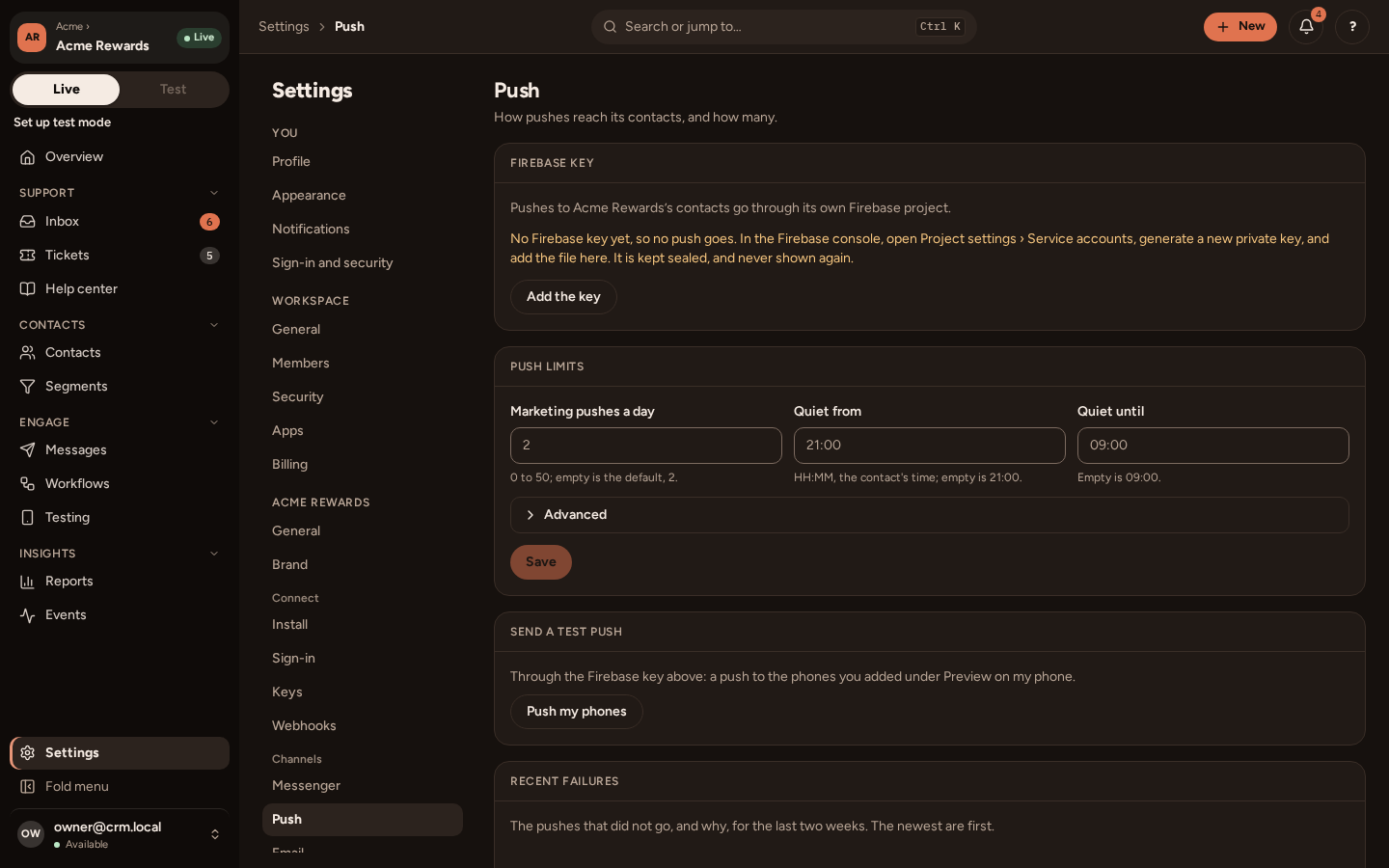
- In PurrCRM, go to Settings › Channels › Push and press Add the key. Choose the file.
The page then shows the Firebase project and the service account. iPhones are reached through the same key once your Firebase project has your Apple push key (APNs).
2. Check your limits
Section titled “2. Check your limits”Settings › Channels › Limits decides how much marketing one person gets:
- Marketing pushes a day and quiet hours, in each person’s own time zone. A push due during quiet hours waits until they end.
- Frequency cap: at most so many marketing messages a day or week, on one channel or all of them.
- Holdout: a share of people who get no marketing at all, so you can measure what your marketing does.
Service pushes, such as “your order has shipped”, are never held by these.
3. Write the push
Section titled “3. Write the push”Press + New › Message and choose Push.
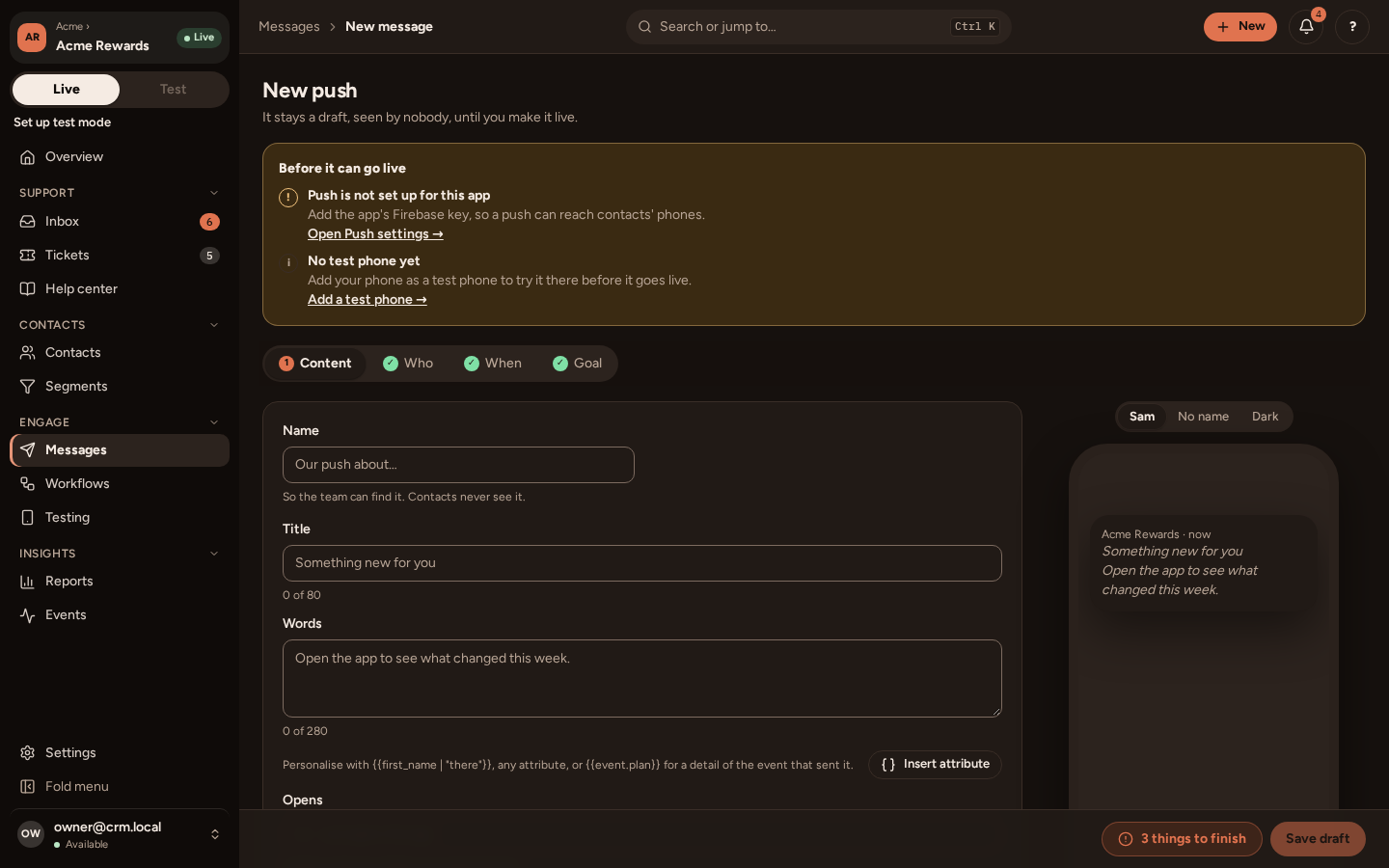
On Content, write a title and a body, and choose where a tap goes: a place in your app, or a web page. Use Insert attribute to personalise them.
4. Choose who gets it
Section titled “4. Choose who gets it”On Who, choose A segment, such as “Gold members”, and choose Marketing, with its topic (such as Offers). The count reads, for example, “40 match · 12 can get this push”, and the chips under it say why the others cannot:
| Reason | What it means |
|---|---|
| No device | They never registered a phone for pushes, or turned notifications off. |
| No consent | They are not subscribed to this topic by push, or turned offers by push off. |
| Held out | They are in your holdout group. |
5. Choose when
Section titled “5. Choose when”On When, a new push is sent Once: now, or at a time you set. Set the days and hours you want, and the push goes in each person’s own time zone.
6. Test, then go live
Section titled “6. Test, then go live”Press Try it on my test phone to get it on your own phone. Then press Go live.
7. See how it did
Section titled “7. See how it did”Open the message and choose Report: how many were sent, delivered and opened, and how many reached the goal. Messages lists every message with Sent, Opened %, Clicked % and Goal % columns: press a column’s name to sort by it.
If a push does not arrive
Section titled “If a push does not arrive”- The message’s report and Settings › Channels › Push › Recent failures say what went wrong, such as a key Firebase refused.
- The person’s contact record lists their devices, and their consent by topic and channel.
- A push to a channel your app has not created arrives silently, or in the wrong place, on Android.