

Test mode
Test mode gives your app a test app: a second copy with its own contacts, events, conversations, messages and keys, kept completely apart from your live app. Your staging build talks to the test app, so your team can try messages, workflows and settings on real phones without any of your users seeing them.
Set it up
Section titled “Set it up”- Go to Testing › Test mode and press Set up test mode.
- Switch the menu’s Live | Test to Test. The first time, PurrCRM explains what changes.
- In Test, every page edits the test app: Settings, Messages, Workflows, the inbox and the rest. A Test app badge shows on every settings page. Switch back to Live the same way.
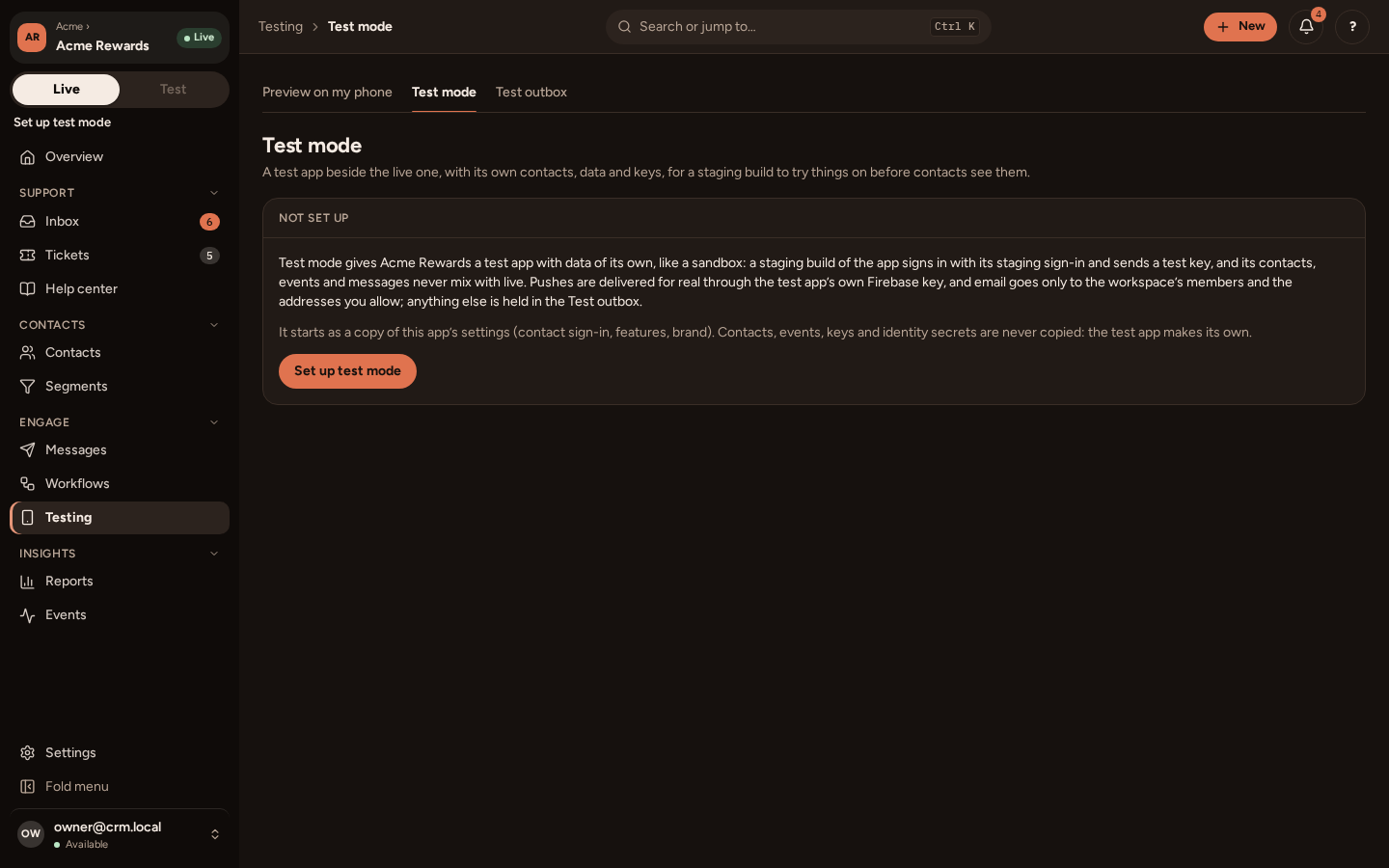
On the test app’s General page, Start from live › Copy all setup from live copies what the live app is set up with (messages, workflows, the help center, segments, attributes and events, saved replies, email layouts, the brand and settings) as drafts, so you do not start from nothing. Contacts, events and keys are never copied, and nor is the test app’s sign-in.
Its own keys
Section titled “Its own keys”The test app has keys of its own, which work only for it:
| Key | Live app | Test app |
|---|---|---|
| App key, in your builds | app_… | app_test_… |
| Identity secret, on your backend | crm_is_… | crm_is_test_… |
| Server key, on your backend | crm_sk_… | crm_sk_test_… |
Your staging build uses the test app key, and your staging backend signs with the test app’s identity secret and uses its server key. Nothing else in your code changes. A token signed for the live app is refused by the test app, and the other way round, with a message saying so. Test mode in the Flutter SDK shows the build commands.
What the test app sends
Section titled “What the test app sends”- Pushes go through the test app’s own Firebase key (your staging Firebase project) to the phones your staging build registered.
- Emails go only to addresses on the test app’s allow-list (on Testing › Test mode). The rest are held in the Test outbox, where your team can read them.
- Testers look real. When a tester signs in to the staging build, their test contact starts with the details of the live contact with the same id, and your live backend’s updates to them are copied across. Nothing flows from the test app back to live.
Moving work between Test and Live
Section titled “Moving work between Test and Live”When a message or a workflow is right in Test, open its More menu and choose Copy to live. The copy arrives in the live app as a draft, for you to check and set live. Copy to test does the opposite.
Clearing and removing
Section titled “Clearing and removing”- Delete all test data (on Testing › Test mode) empties the test app’s contacts, conversations and events, and keeps its setup.
- Remove test mode deletes the test app and everything in it. Its keys stop working at once, and staging builds still using them are refused. You type the app’s name to confirm.