

Reports
Reports shows how things are going over the days you choose. Pick a range at the top, and press Compare to see it against the range before.
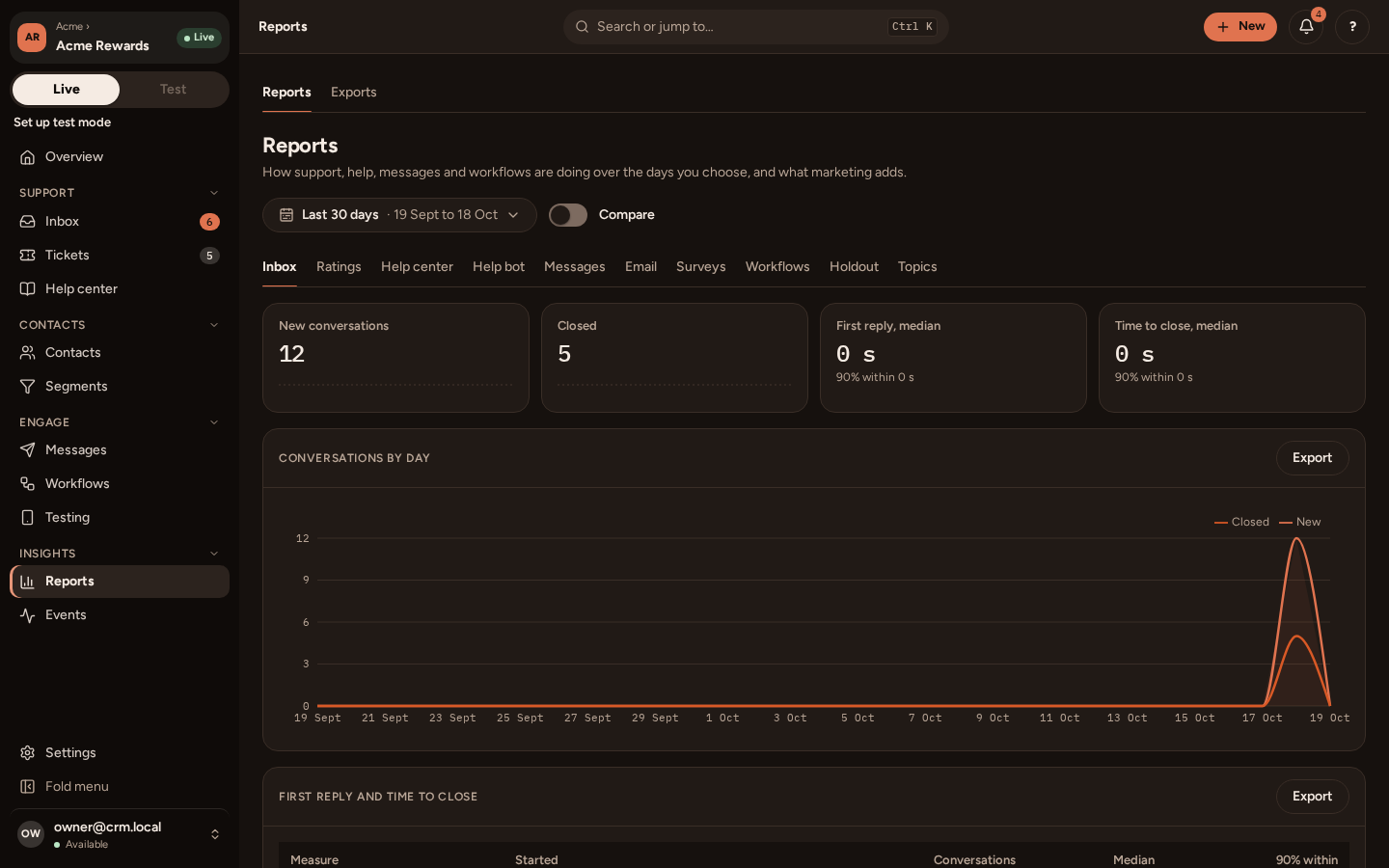
| Tab | What it shows |
|---|---|
| Inbox | New and closed conversations by day, first reply and time to close (median, and 90% within), by team, by teammate and by channel, and how often reply targets were met. |
| Ratings | How people rated closed conversations, by day. |
| Help center | Reads and searches by day, the most searched words, searches that found nothing, and how each article was rated. |
| Help bot | How the bot’s conversations ended: answered by an article, handed to your team, or left. |
| Messages | Each message, version by version: sent, opened, clicked and reached the goal. |
| Each email variant by variant, email by day, and the list’s health (bounces, complaints, unsubscribes). | |
| Surveys | How many saw and answered each survey, and where people stopped. |
| Workflows | Runs started in the period, and for one workflow, how many runs reached each step and where they ended. |
| Holdout | What your marketing adds: the goal rate of people who got marketing against the holdout who got none. |
| Topics | Who is subscribed to each topic, by channel. |
Every table has Export, to a CSV file. Larger exports, such as all your contacts, are on Reports › Exports.
Counting days
Section titled “Counting days”Days are counted in your app’s time zone, which you set on Settings › your app › General. Email and help center figures are counted in UTC days.
A message’s own report
Section titled “A message’s own report”Each message has a Report tab of its own, with its numbers by version, by language and, for an A/B test, by variant with where the test stands. A workflow’s Runs shows each person’s way through it.
The overview
Section titled “The overview”The Overview shows the main numbers for today, 7 days or 30 days, with what needs you now and the setup checklist.