

Segments
A segment is a saved group of people, such as “Gold members” or “Ordered this month but not this week”. It updates by itself as people change, and you can use it to choose who gets a message, who sees a messenger card, and who you look at on Contacts.
Make a segment
Section titled “Make a segment”-
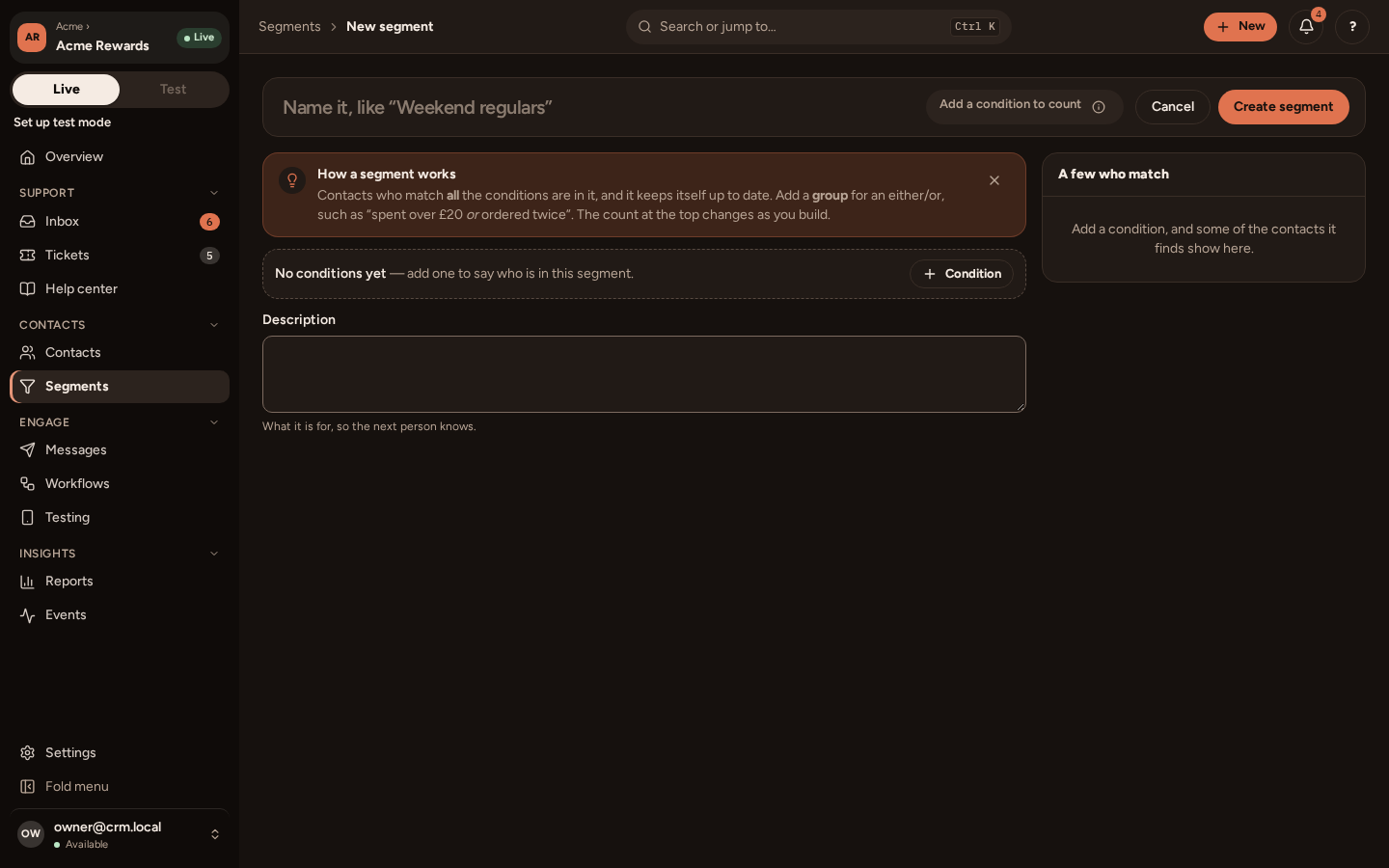
Go to Segments and press New segment.
-
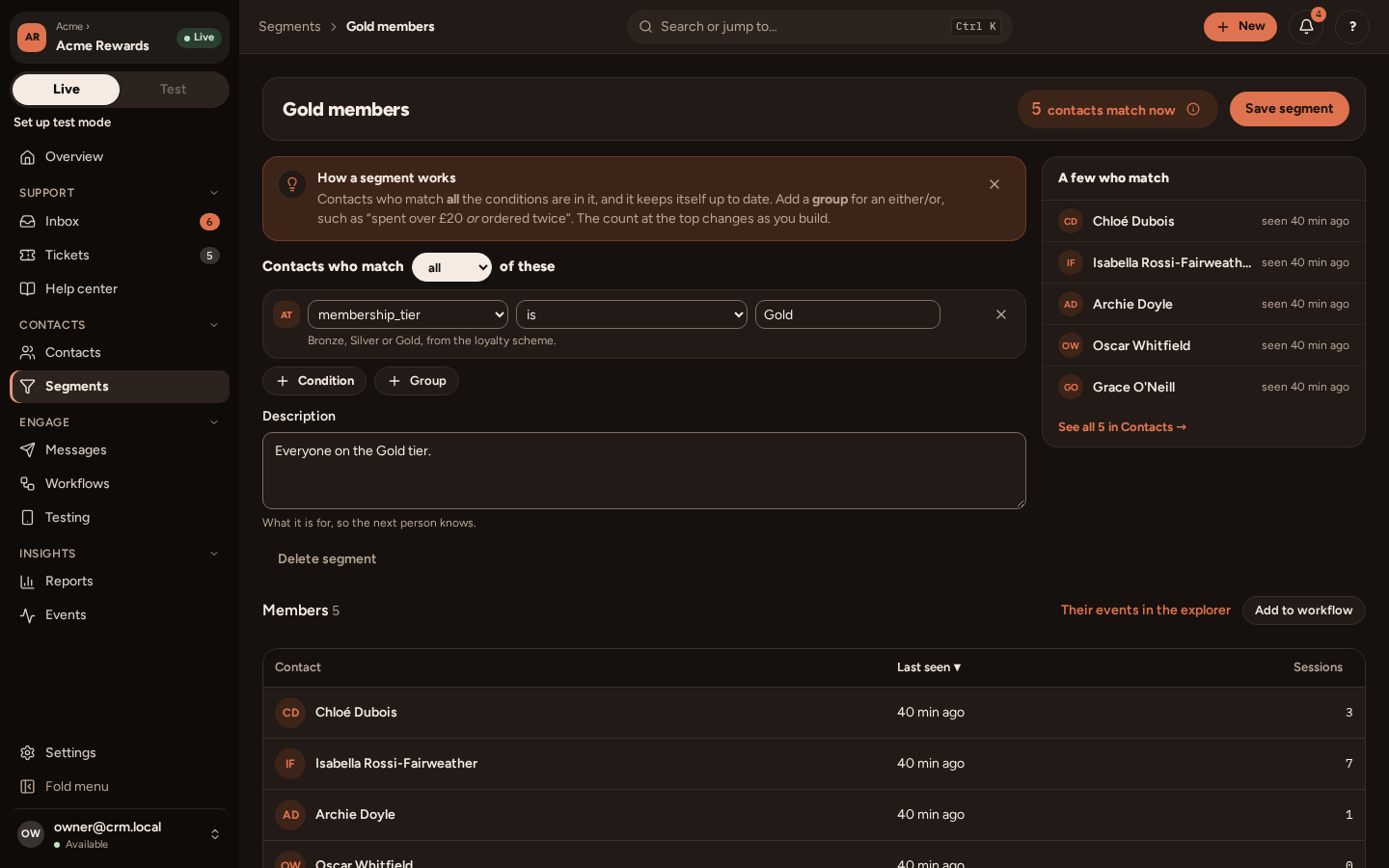
Add conditions. Each condition is one of:
Kind Example An attribute membership_tierisGold;points_balanceis more than 1000; signed up in the last 30 days.Something they did Did order_placedat least twice in the last 30 days; has not opened the app for 14 days.A tag Has the tag “VIP”. A topic Is subscribed to “New arrivals” by email. -
A person must match all the conditions to be in the segment. For an either/or, add a group: for example “Gold, and a group of (ordered this week, or opened the app today)”.
-
The count at the top shows how many people match now, and A few who match shows some of them. Name the segment, say what it is for, and press Create segment.
Use it
Section titled “Use it”- Messages: on Who, choose A segment. A message that goes Whenever someone starts to match reaches each person as they join the segment.
- Workflows: joining or leaving a segment is recorded as an event (
segment_entered,segment_left), so a workflow can start on it, and a check step can ask whether someone is in one. - Messenger: show a card on the messenger’s home only to one segment.
- Contacts: press + Filter: segments come first, then conditions of your own.
- The attributes and events you can use are those on Settings › Audience › Data. Give attributes clear labels there; see Data.
- Time is in each person’s own time zone where it matters (“today”, “this morning”), else in your app’s time zone.
- Test a segment on Contacts first: filter by it, and open a few people to check they belong.