

Getting started
PurrCRM is where your team talks to the people who use your app: a messenger with a help bot and a help center, in-app messages and surveys, pushes and email, and workflows that follow people up over days. This page takes you from nothing to a workspace your team can use. It takes about ten minutes.
You need an email address you can read now. Connecting your app comes later, and is your developers’ part: the Flutter app and Web app and backend sections are written for them.
1. Sign up
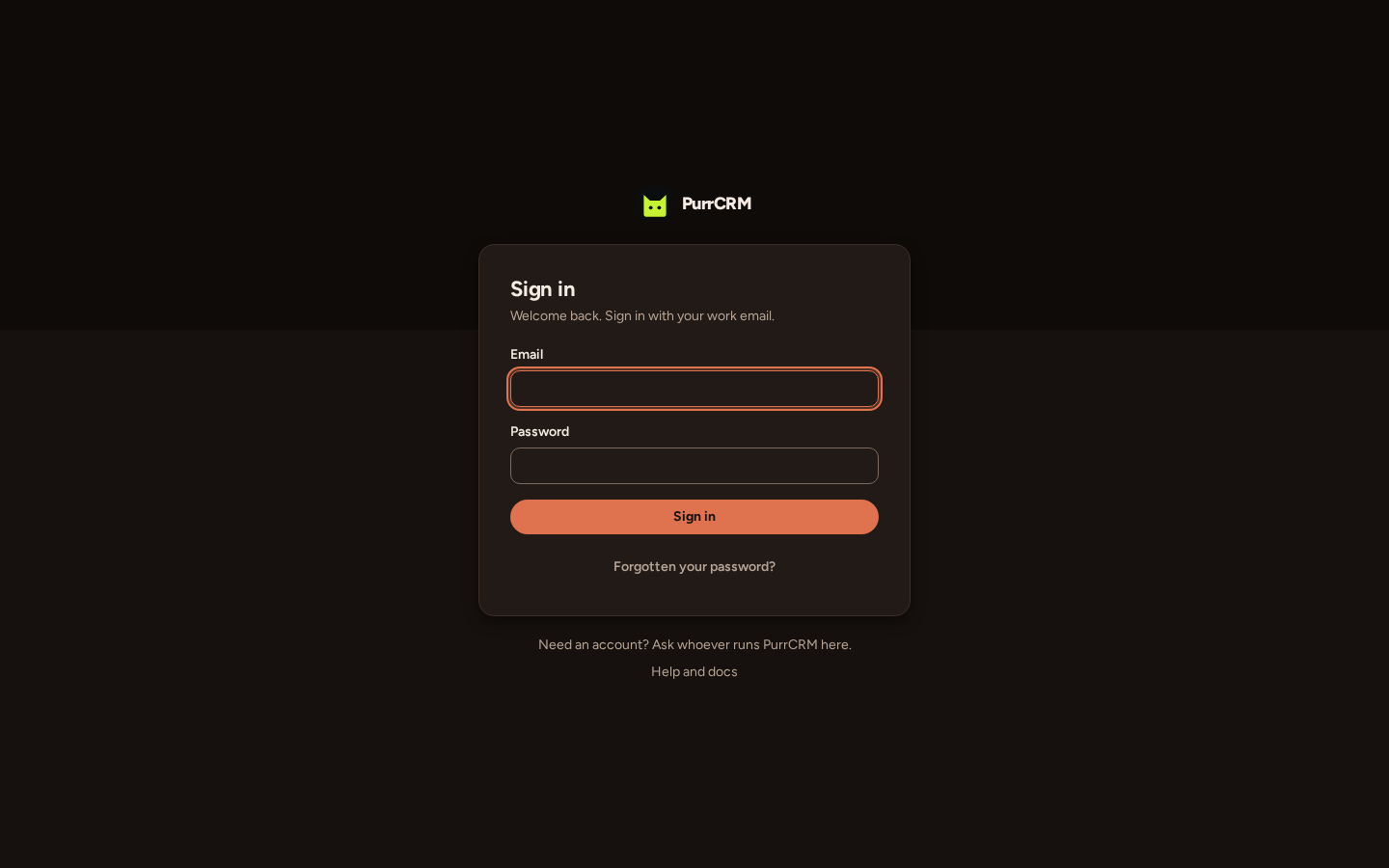
Section titled “1. Sign up”- Go to PurrCRM and press Get started.
- Enter your work email, a password, a name for your workspace (usually your company, such as Northwind Coffee) and a name for your first app (such as Northwind Rewards).
- Open the email Confirm your email for PurrCRM and press its link. The link works once, for a day.
- The page shows the names you chose. Press Create my workspace.
- Press Open my workspace. You are signed in, as the workspace’s owner.
Next time, sign in at https://app.purrcrm.com.
2. Look around
Section titled “2. Look around”The Overview is your home. Its Set up card lists what is left to do, and each line is ticked from something that really happened, not from a button somebody pressed. For example, “Install the SDK in a build” ticks itself when the first request from your app arrives.
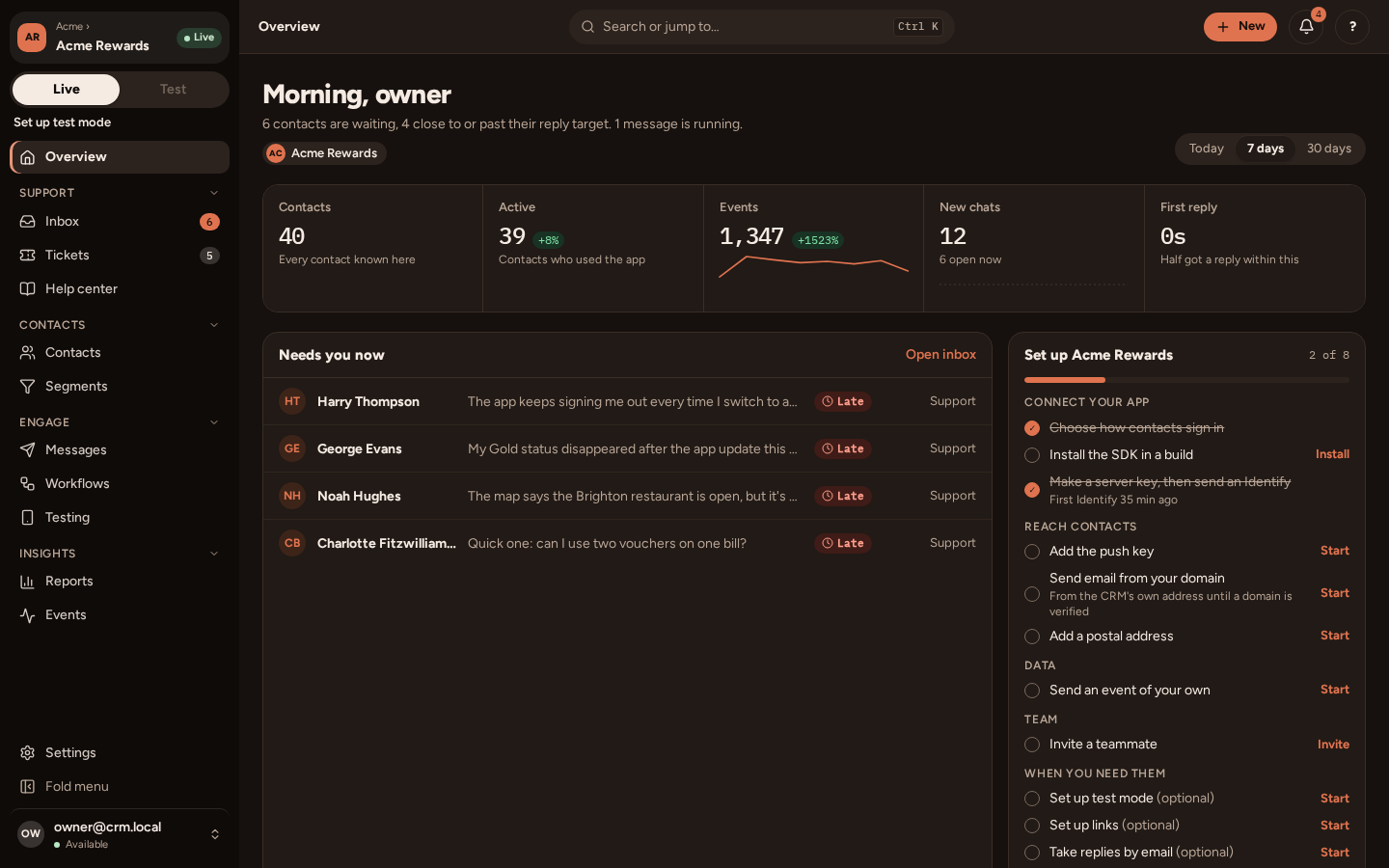
The menu on the left has everything else:
| Part | What it is for |
|---|---|
| Inbox, Tickets, Help center | Talking to people: conversations from the messenger, tickets that need follow-up, and your help articles. |
| Contacts, Segments | Everyone who uses your app, and saved groups of them. |
| Messages, Workflows | Banners, posts, carousels, surveys, pushes and emails, and journeys that send them over days. |
| Testing | Test mode, and sending a message to your own phone. |
| Reports, Events | How messages and support are doing, and what people do in your app. |
| Settings | Your workspace, your apps and your account. Press Ctrl K anywhere and type what you want, such as “push” or “invite”. |
The Live | Test switch at the top of the menu changes which copy of your app you are working on. Leave it on Live for now; Test mode explains it.
3. Set up your app
Section titled “3. Set up your app”Your first app was made when you signed up. Open Settings: the app’s pages are grouped as Connect, Channels, Audience and Support.
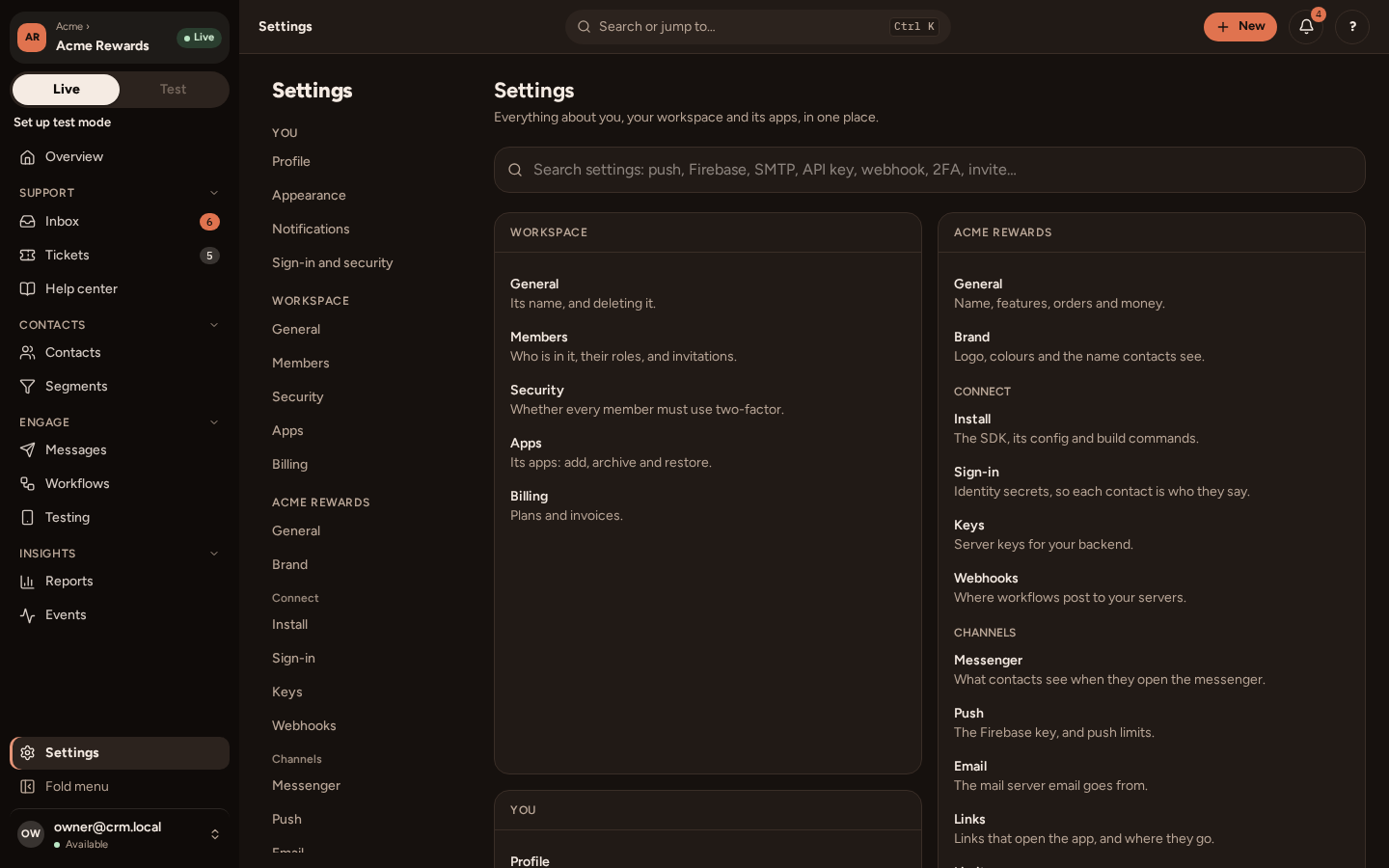
In order:
- General and Brand: the app’s name, its accent colour, its logo, its time zone and its support email. These show in the messenger, emails and the help center.
- Connect › Install: what your app’s developers need. Send them Install the Flutter SDK. If a website or web app of yours will call PurrCRM from the browser, name it under Web origins (From a website or web app).
- Connect › Sign-in: how your users are signed in. The identity secret you copied is the recommended way. Sign users in has the details.
- Connect › Keys: a server key, for your backend to tell PurrCRM who your users are. Connect your backend.
- Channels › Push and Channels › Email: to send pushes and emails. Follow A push campaign and An email from your own domain.
Every card has one Save button, greyed out until you change something. If you try to leave with unsaved changes, PurrCRM asks first.
More than one app
Section titled “More than one app”A workspace can hold several apps, for example one per brand or country. Each app has its own contacts, messages, help center and keys, and nothing is shared between them. To add one, go to Settings › Workspace › Apps and press New app. Switch between apps with the box at the top of the menu.
4. Invite your team
Section titled “4. Invite your team”-
Go to Settings › Workspace › Members and press Invite.
-
Enter one address, or several separated by commas or new lines (up to 50 at a time).
-
Choose a role for them:
Role Can Owner Manage the workspace, its apps and its owners. Admin Manage members, invitations and apps, and everything in them. Agent Answer contacts: the inbox, notes and tickets. Read everything else. -
Press Invite. Each person gets an email naming you, the workspace, their role and when the link expires.
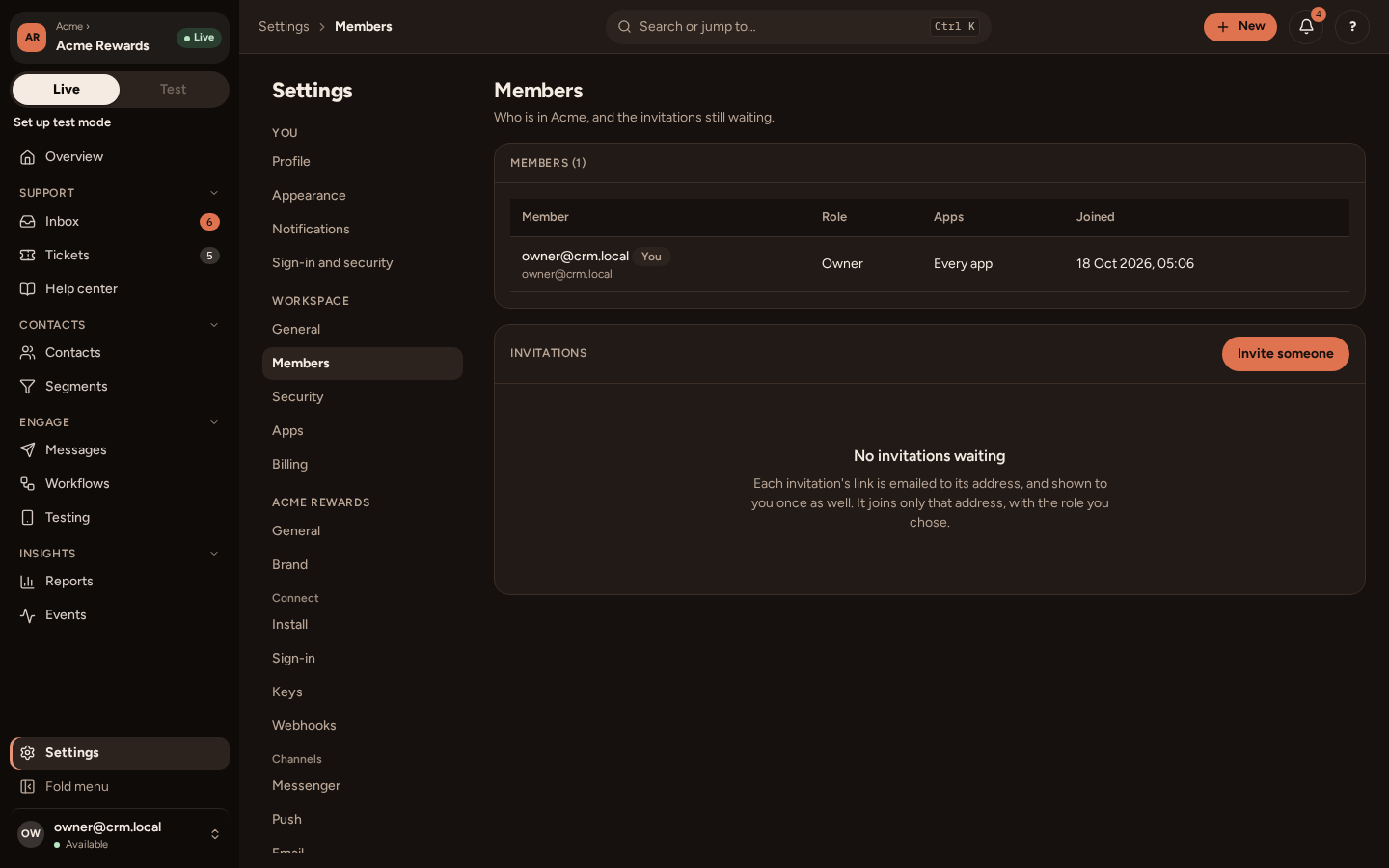
The link works only for the address it was sent to. If an email does not arrive, press Resend beside the invitation for a new link; the old one stops working.
What next
Section titled “What next”- Your first in-app message, once your app has the SDK.
- Set up the inbox and help center, so people can reach you.
- Test mode, to try things with a staging build before your users see them.